Interface
Start screen
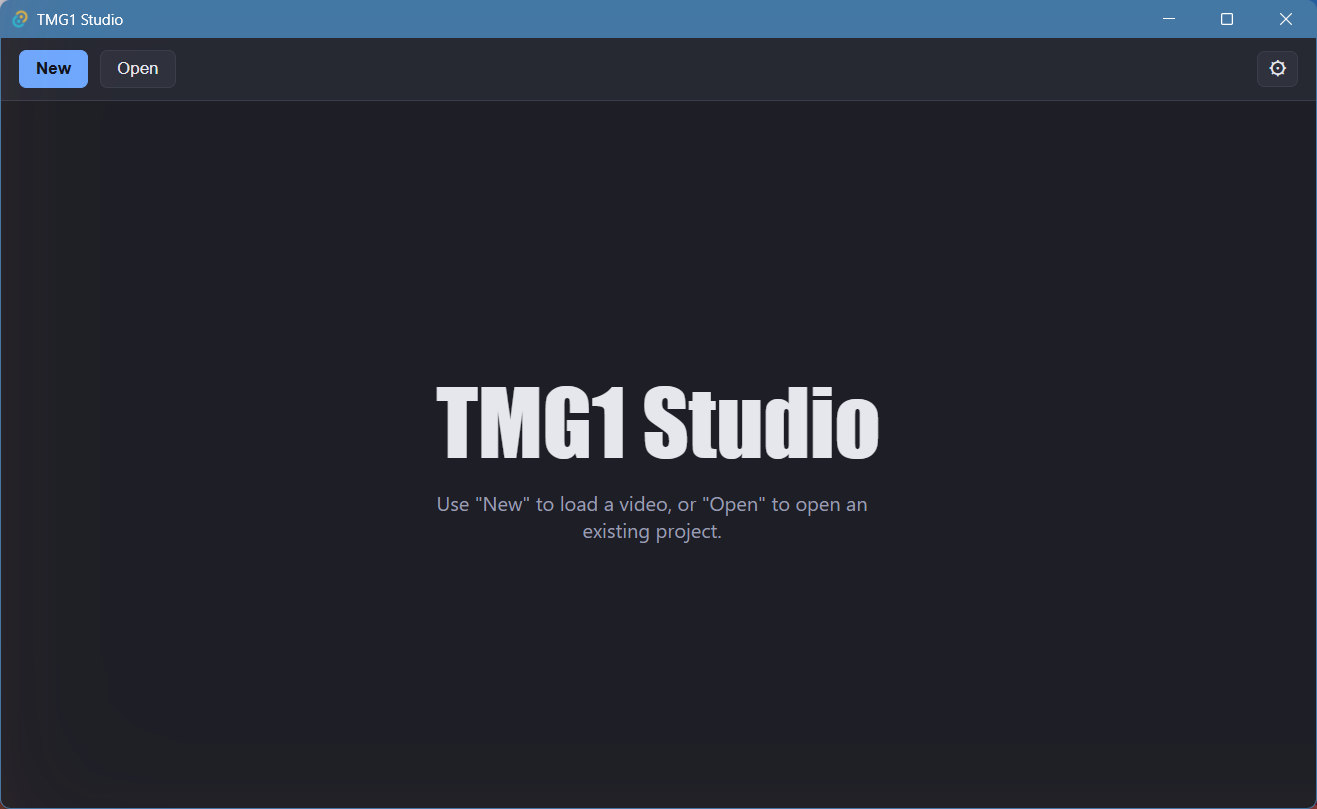
When no project is open:
- New — load a video and start a new project.
- Open — open an existing TMG1 Studio project (
.tmgproj). - The gear icon opens Settings.
Toolbar (project open)

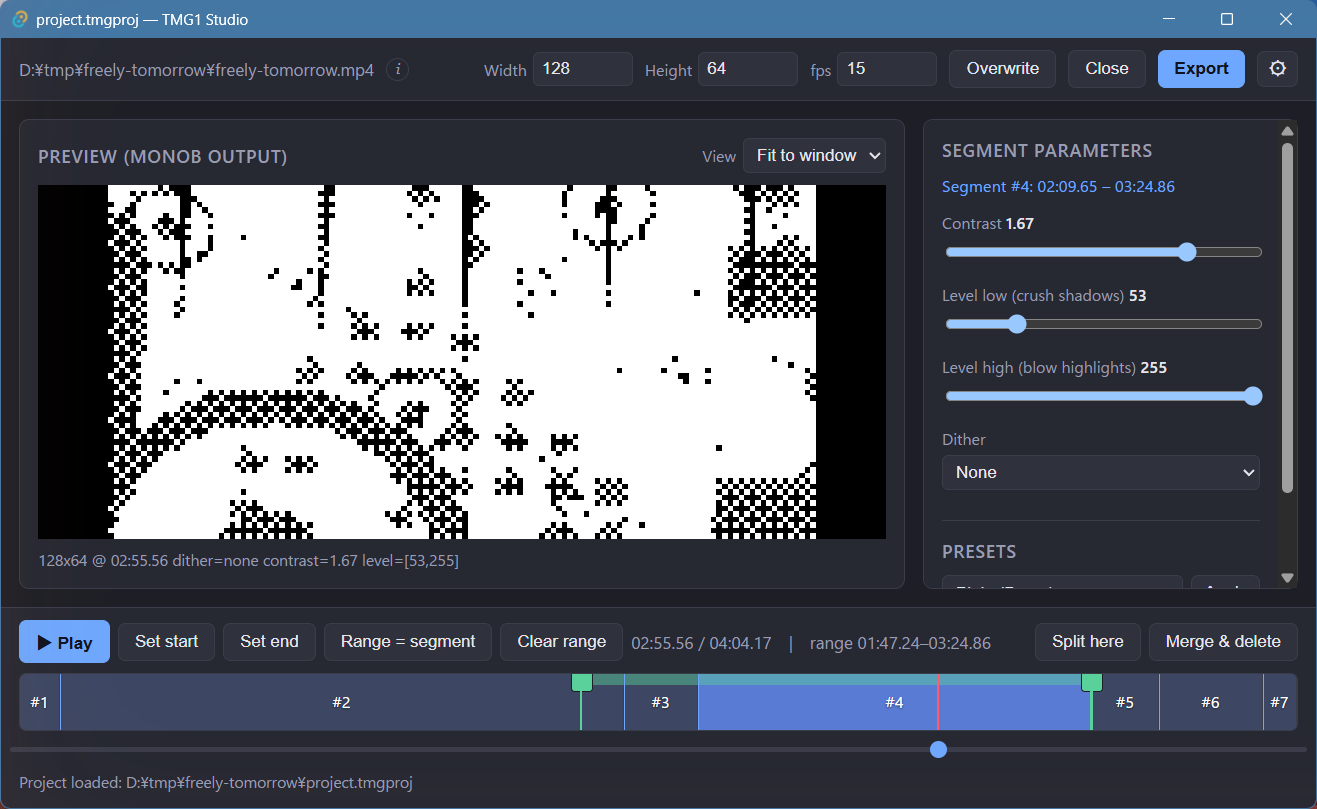
Shows the source video path, plus:
- Width / Height / fps — output resolution and frame rate. Width must be a multiple of 8.
- Overwrite — save the project over its current file.
- Close — close the project.
- Export — open the export settings dialog.
Settings
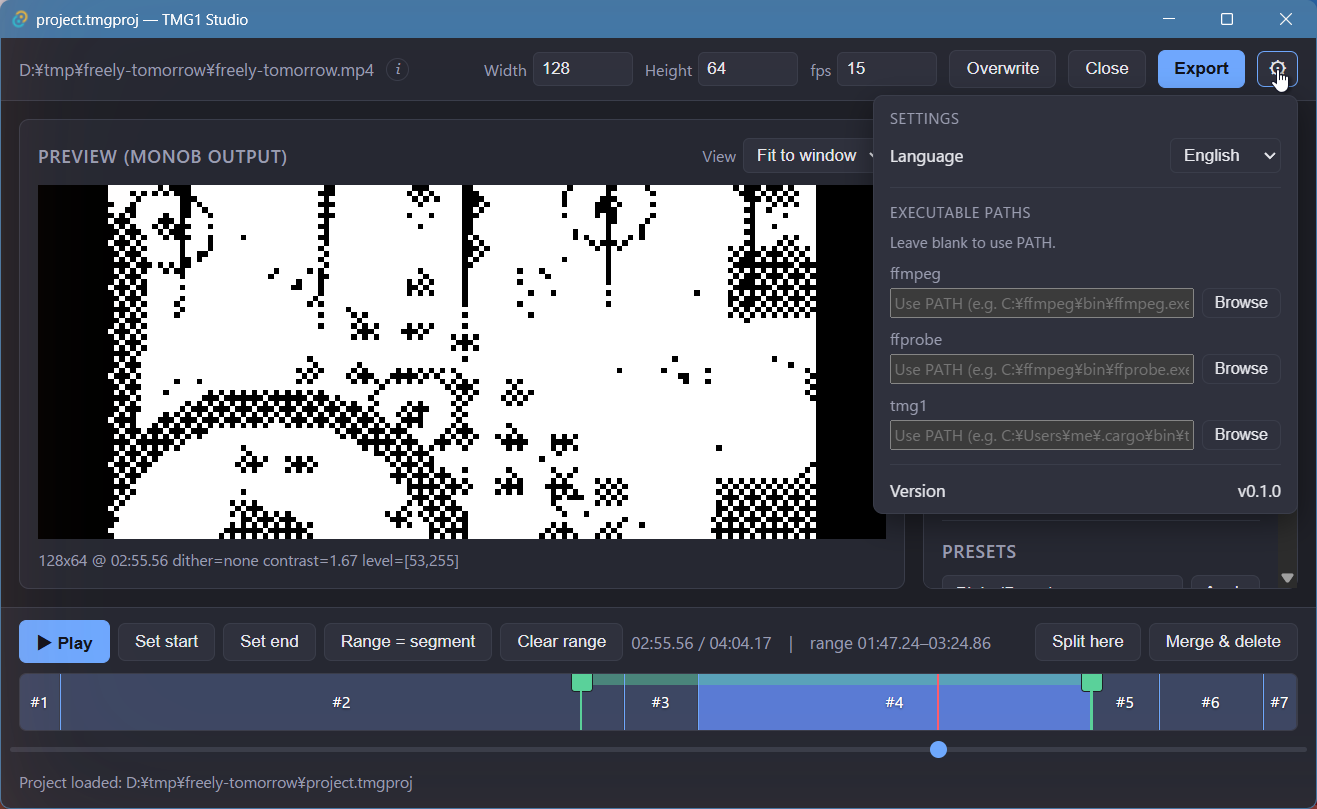
Opened with the gear icon: Language (English / 日本語 / 简体中文) and
Executable paths for ffmpeg, ffprobe, and tmg1. Leave a path blank
to use PATH.
Preview pane
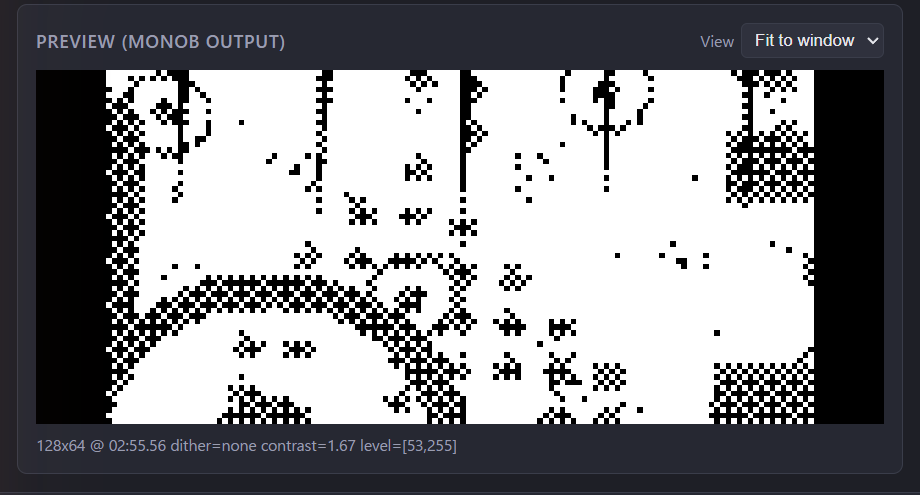
Preview (monob output) shows the exact 1-bit monob result at the
current playhead position; the caption below lists the active dither,
contrast, and level values. View switches zoom levels or fits the
preview to the window. The same filter chain is used for preview and
export, so what you see is what you get.
Segment parameters pane
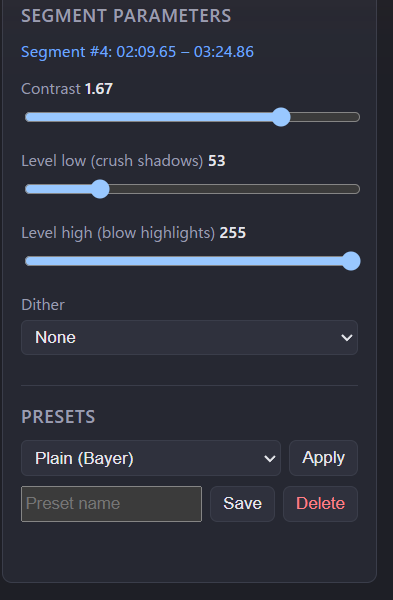
Shows the parameters of the segment under the playhead: Contrast, Level low (crush shadows), Level high (blow highlights), and Dither. Below it, Presets let you save and re-apply parameter sets. See Editing for details.
Timeline

Segments and their boundaries, with transport and range controls: Play / Set start / Set end / Range = segment / Clear range, and the segment operations Split here and Merge & delete. The scrub bar below moves the playhead.